Triggering a CronJob Manually from the ArgoCD UI on Akuity
Resolving the `jobs.batch` is forbidden error when creating a Job from a CronJob via the ArgoCD UI on an Akuity-managed cluster.
When using an Akuity-managed ArgoCD instance, users may want to manually trigger a CronJob (e.g., integration test pipelines) directly from the ArgoCD UI without waiting for the scheduled run. Attempting to do so using the default "Create Job from CronJob" action results in a permission error, because the Akuity agent's service account does not have the necessary RBAC privileges to create batch/jobs resources in the target namespace.
Symptoms
When a user attempts to trigger a CronJob manually from the ArgoCD UI by selecting "Create Job" on a CronJob resource, the following error is displayed:
Unable to execute resource action: jobs.batch is forbidden:
User "system:serviceaccount:akuity:akuity-agent" cannot create resource "jobs"
in API group "batch" in the namespace "app":
Azure does not have opinion for this user.
Root Cause
The Akuity agent runs under the service account system:serviceaccount:akuity:akuity-agent. When a resource action (such as creating a Job from a CronJob) is triggered via the ArgoCD UI, the action is executed by this service account. By default, this account does not have create permissions on jobs.batch resources in application namespaces.
Solution
✅ No cluster role or RBAC manifest changes are required.
The recommended fix is to enable the "Create Job from CronJob" capability via ArgoCD's built-in Resource Customizations settings in the Akuity UI. This delegates the job creation through ArgoCD's own resource action framework, which is already authorized, rather than having the agent attempt the API call directly.
Steps
- Log in to your Akuity Platform dashboard and navigate to your ArgoCD instance.
- Go to Settings → Resource Customizations.
- In the resource customizations configuration, add or enable the action for
batch/CronJobto allow job creation. Refer to the Akuity documentation screenshot for the exact UI location: 👉 Argo Settings – Resource Customization (CronJob) - Save the configuration.
- Re-apply the Akuity Agent manifest for your cluster(s) by going to Clusters on the Akuity Platform. Then click the Re-apply Manifest link on each affected cluster to get the new manifest.
- Once the Akuity Agent manifest is updated, return to the ArgoCD application view, locate your CronJob resource, and attempt to trigger "Create Job" again.
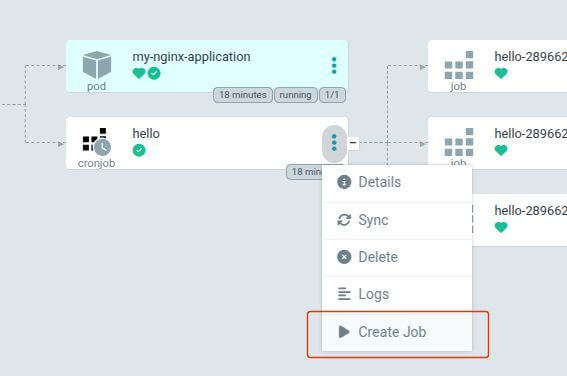
The action should now complete successfully without any forbidden errors.