
When setting up the Helmfile plugin with the Akuity Config Management Plugin (CMP), users may encounter confusion around how to reference the plugin version in their Application manifests.
By default, the Akuity UI suggests adding the plugin with a version like v1.0, but this version tag is not required — and using it incorrectly can prevent your Helmfile Application from syncing properly.
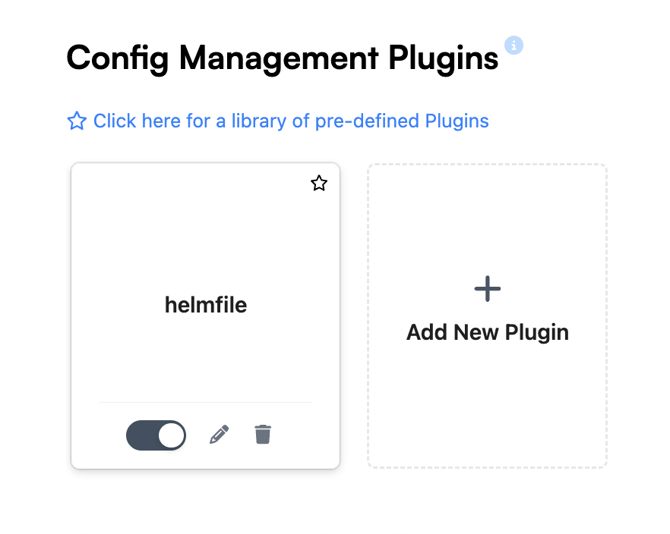
1. Default CMP Behavior
The Akuity platform supports automatic plugin discovery for Helmfile applications.
If your repository includes a file named either:
helmfile.yaml or .yml
then the CMP will automatically detect and use the Helmfile plugin, even if you do not explicitly reference it in your Application manifest.
This means that the following Application manifest will work without specifying any plugin section:
project: defaultsource: repoURL: https://github.com/myorg/myrepo.git path: helmfile_basic targetRevision: HEADdestination: server: http://cluster-temp:8001 namespace: helmfilesyncPolicy: automated: {}syncOptions: - CreateNamespace=true
✅ In this setup, the CMP auto-detects the Helmfile plugin since it finds a helmfile.yaml in the repo.
2. Specifying the Plugin Manually
If you prefer to explicitly define the plugin, you can do so by referencing its name under plugin: in your manifest.
In this case, you can include the optional version — but it must match how the plugin was registered in your CMP configuration.
For example:
project: defaultsource: repoURL: https://github.com/myorg/myrepo.git path: helmfile_basic targetRevision: HEAD plugin: name: helmfile-v1.0destination: server: http://cluster-temp:8001 namespace: helmfilesyncPolicy: automated: {}syncOptions: - CreateNamespace=true
⚠️ Important Note:
If your CMP plugin configuration does not include a versioned plugin name (for example, helmfile-v1.0), then specifying that version in the Application will fail.
To confirm the available plugin names:
-
Open your Akuity Control Plane.
-
Navigate to Config Management Plugins (CMP).
-
Review the Plugin Name field — use that exact name in your Application manifests.
3. Why It Works Without a Plugin Definition
When you omit the plugin: block entirely, Akuity’s CMP automatically matches based on file structure:
-
If a
helmfile.yamlorhelmfile.ymlexists → uses the Helmfile plugin. -
If a
Chart.yamlexists → uses the Helm plugin. -
If a
kustomization.yamlexists → uses the Kustomize plugin.